How to Configure Codex + a Model
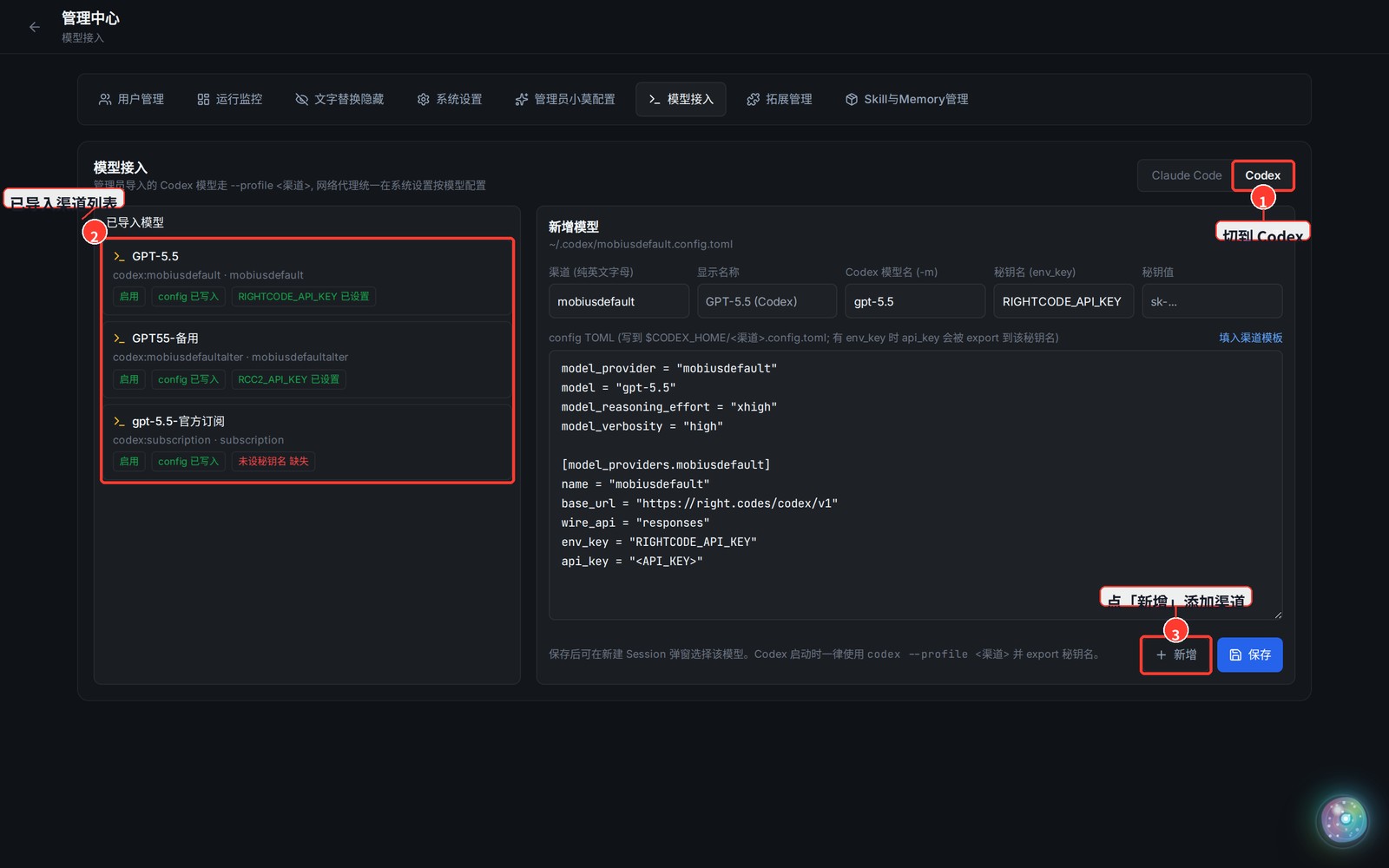
Codex (the command-line coding model) is configured under Admin Center → Model Integration → Codex. Each "channel" maps to a ~/.codex/<channel>.config.toml file and is selected at session start via codex --profile <channel>.
1. Open Model Integration → Codex
- Top-right avatar menu → Admin Center → the Model Integration tab → pick Codex at the top right. The left side lists imported channels; the right side is the add / edit form.
2. Add a Codex Channel
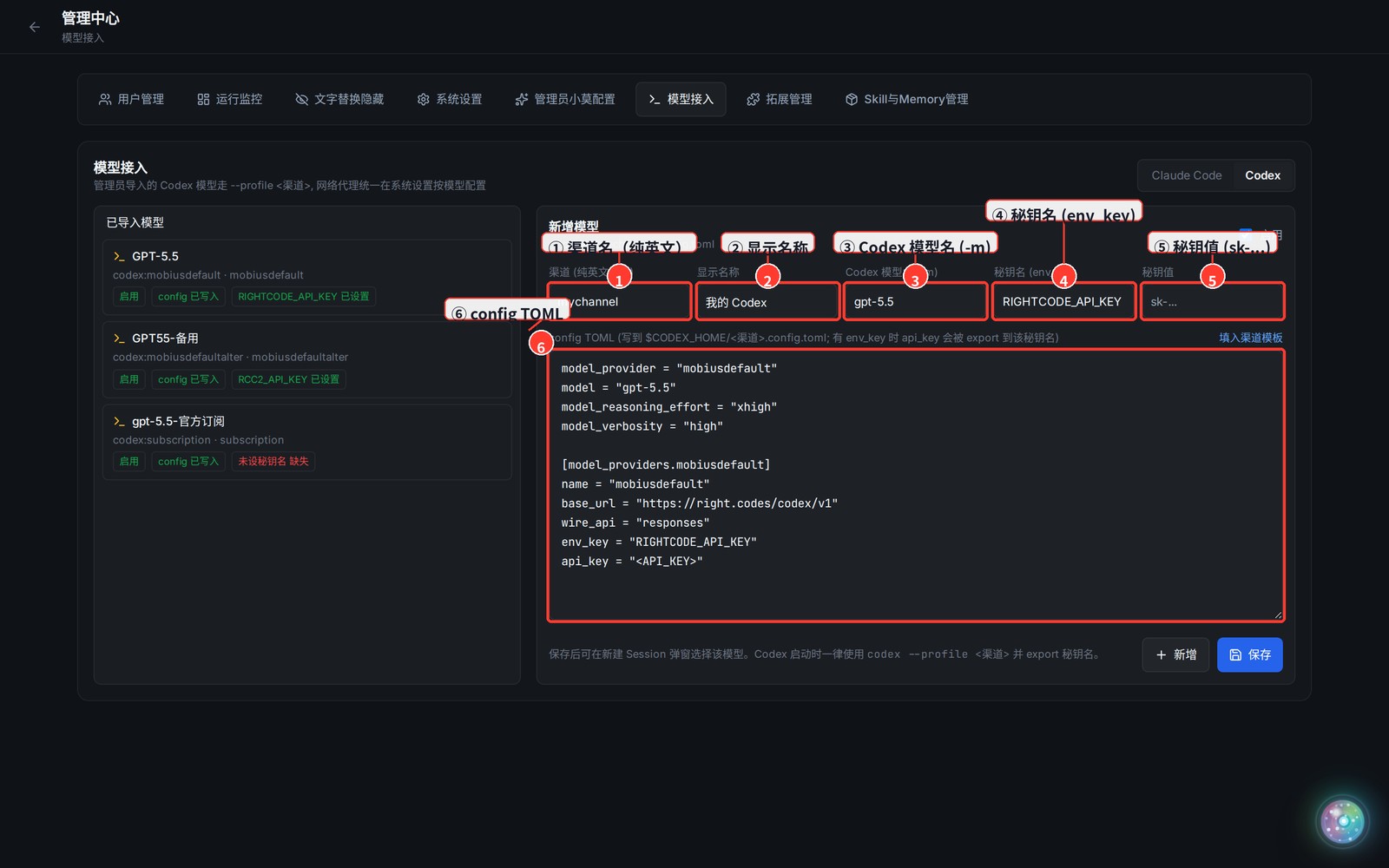
- Click New, then fill in the fields below (it only saves — nothing is invoked yet):
| Field | Meaning |
|---|---|
| ① Channel (ASCII letters only) | Channel name; also the --profile id and config filename, e.g. mychannel |
| ② Display name | Name shown in the model picker, e.g. My Codex |
| ③ Codex model name (-m) | Passed to codex as -m, e.g. gpt-5.5 |
| ④ Secret name (env_key) | Env var the api_key is exported to; defaults to RIGHTCODE_API_KEY |
| ⑤ Secret value | The real API key (sk-...); leave blank when editing to keep the old one |
| ⑥ config TOML | Auto-generated; written to ~/.codex/<channel>.config.toml with base_url / api_key |
- Click Save when done.
3. Use It
- Saving writes
~/.codex/<channel>.config.tomland exports the secret to yourenv_key. - The channel then appears in the model picker when creating a new session / research task. In the list, the three badges
enabled / config written / secret setall being green means it's ready.