Web Terminal: Open a Project Shell or Inspect the Agent Backend
In any session (an Issue's Session or a Research Agent), you can open a web terminal without switching to SSH. Choose a normal project shell when you want to run commands, or attach directly to the current Agent's tmux backend when you want to inspect what it is actually doing.
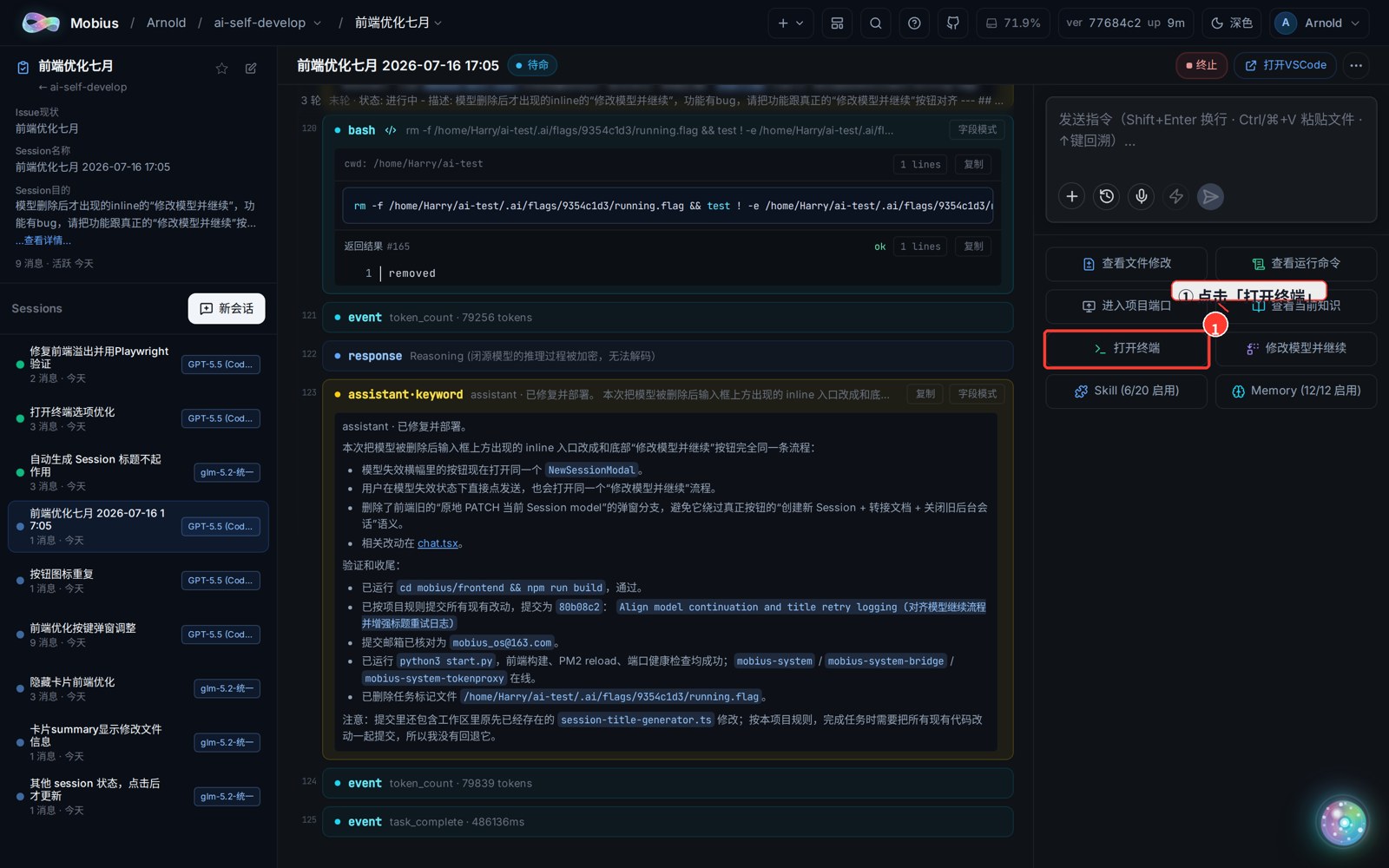
① Click "Open Terminal"
Open any session and click "Open Terminal" in the session tool area.
② Choose how to open it
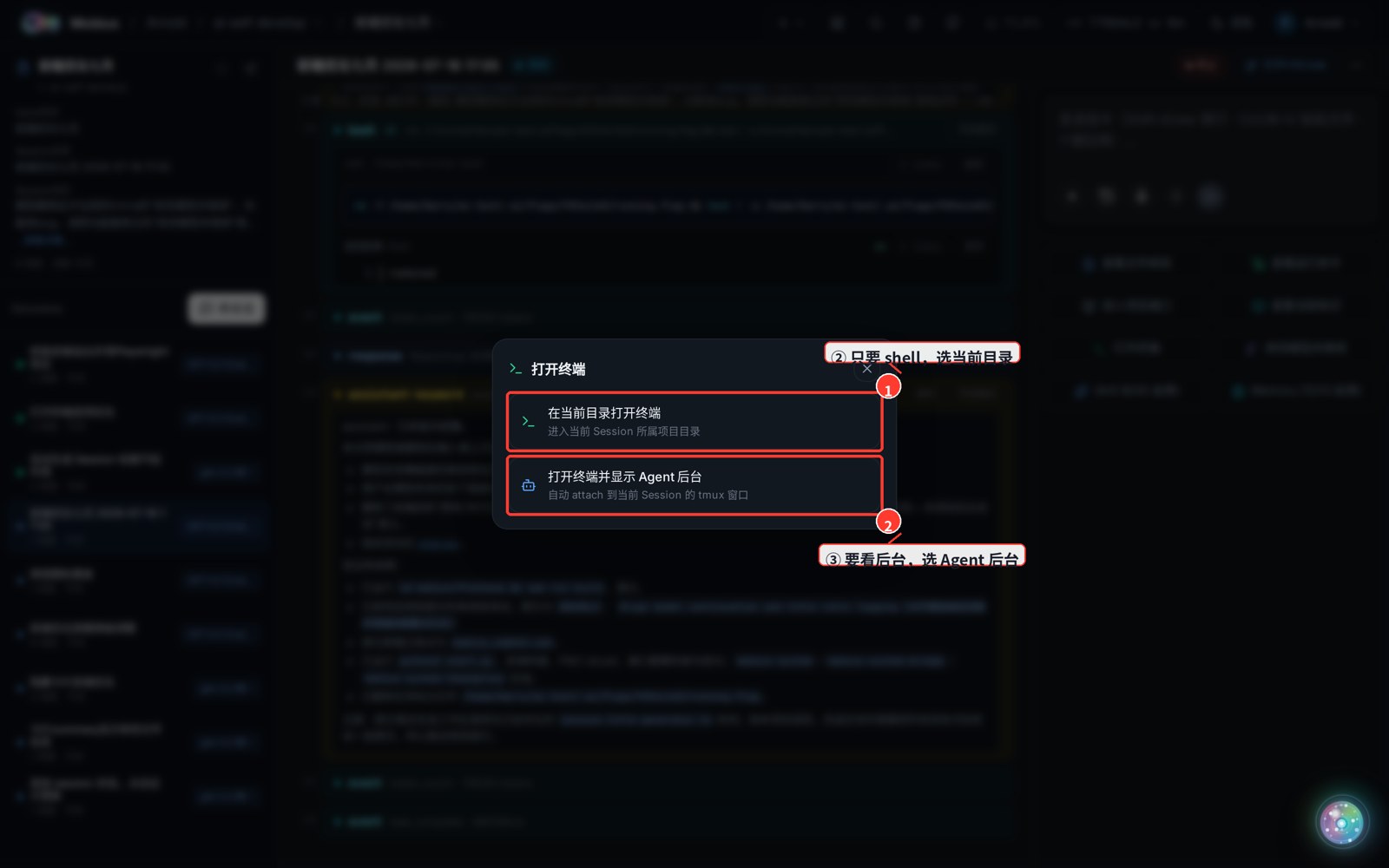
Mobius shows two choices:
- Open terminal in current directory: enter the current project folder, useful for inspecting files, running scripts, and reading logs.
- Open terminal and show Agent backend: open the terminal and automatically attach to the current session's Agent tmux window.
③ Run commands in the current directory
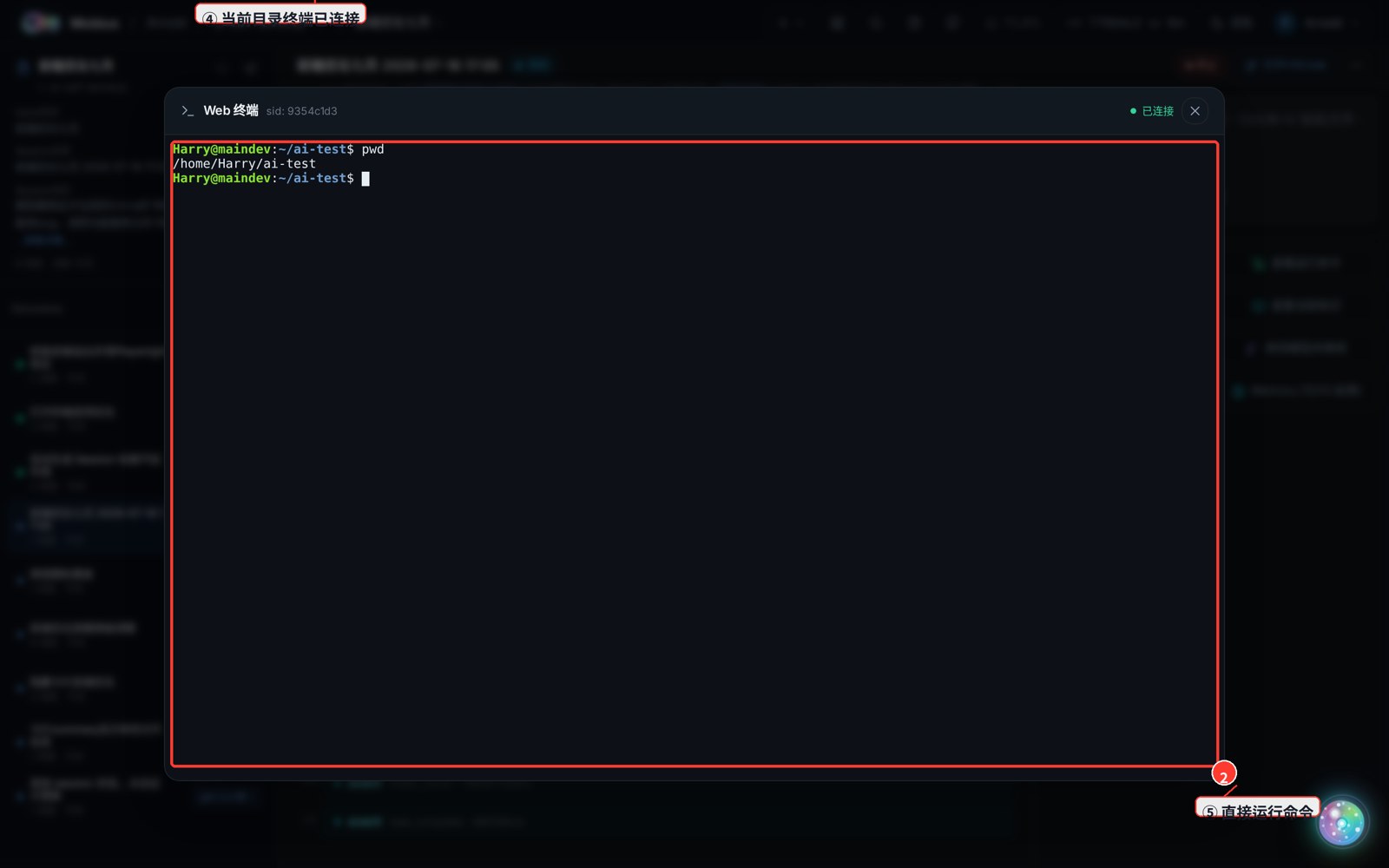
Choose "Open terminal in current directory". A green "Connected" label appears at the top, and the terminal opens as a real shell in the current project's folder. Type a command and press Enter to run it live on the server.
④ Inspect the Agent backend
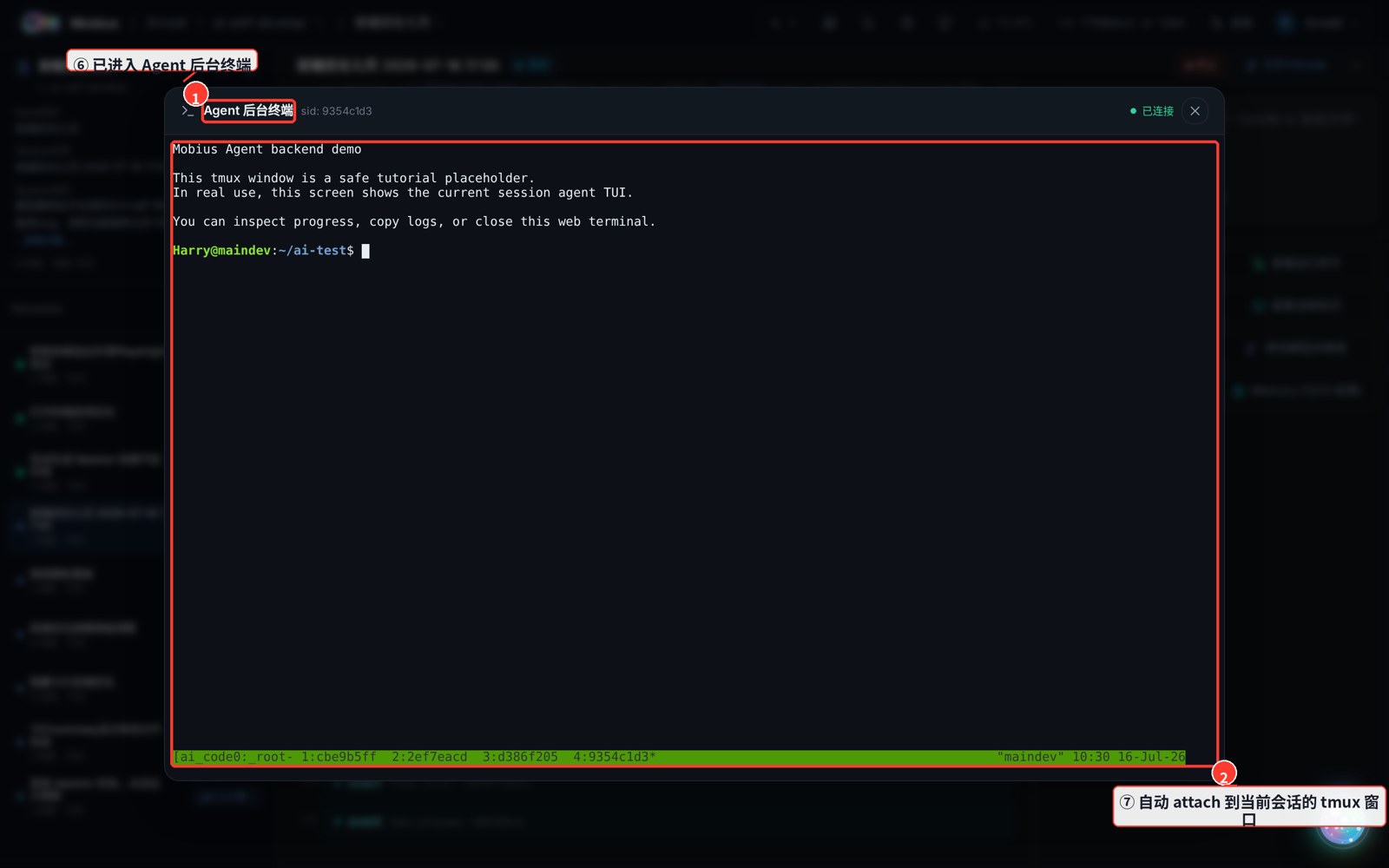
Choose "Open terminal and show Agent backend". Mobius first opens the web terminal, then runs tmux attach automatically and enters the Agent backend window for the current session. Use this when you want to inspect the Agent TUI, check whether it is stuck, or copy backend logs.
Tip: Pressing Esc does NOT close the popup (Esc is reserved for vim, tmux, Agent TUIs, and similar programs). Click the ✕ at the top-right or the backdrop to close it. Closing the web terminal only disconnects this viewer; it does not kill the running Agent backend.