Monitor Agents in the Admin Center
Admins can watch every running agent in real time from Admin Center → Runtime Monitoring: each tmux window's status, owning session, PID, last-activity time and question count are all visible, and stuck windows can be closed right there. This walkthrough covers the whole flow.
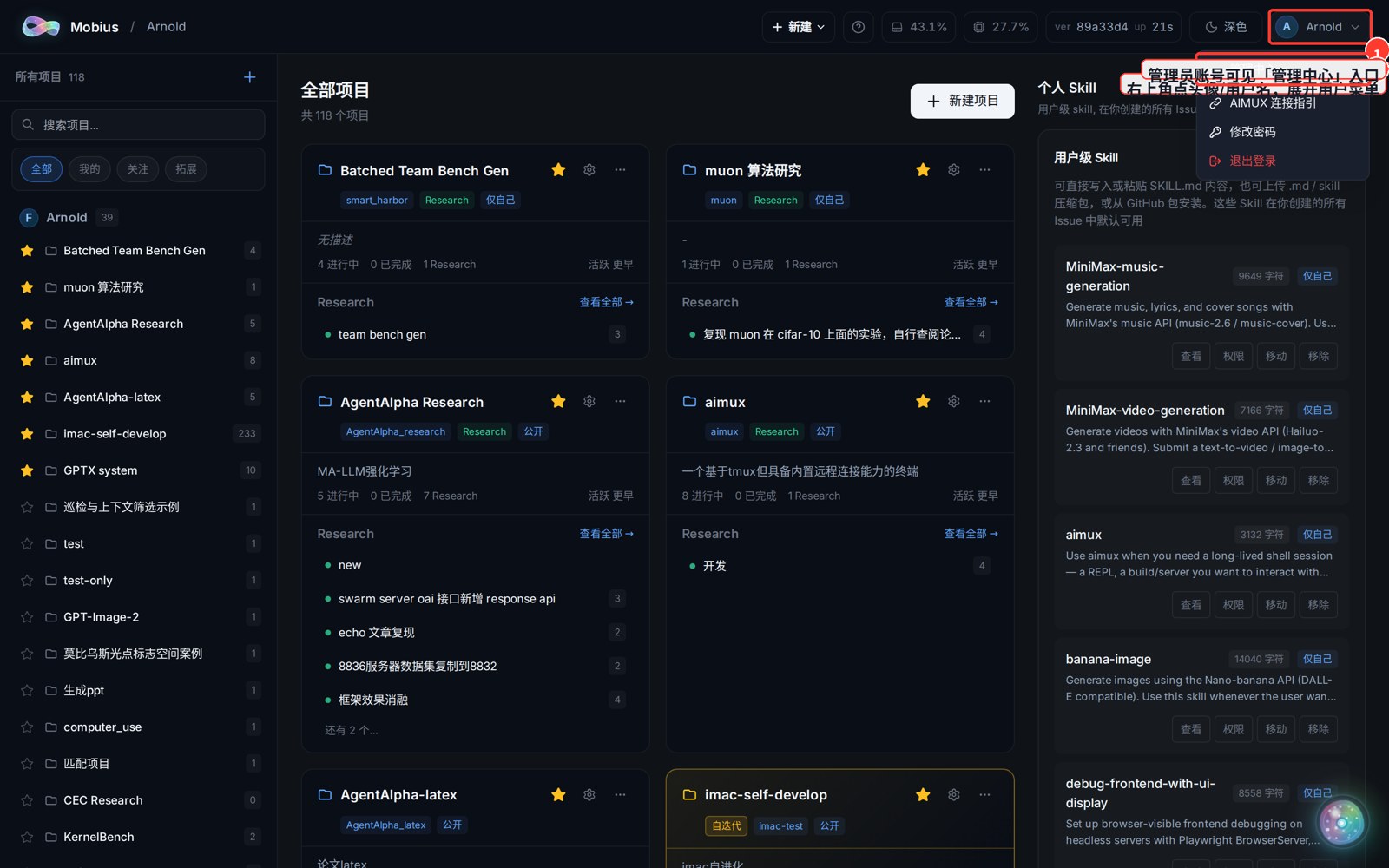
1. Open the Admin Center from the user menu
- Click your avatar / username in the top-right to open the user menu.
- Only admin accounts see the "Admin Center" entry — click it to enter.
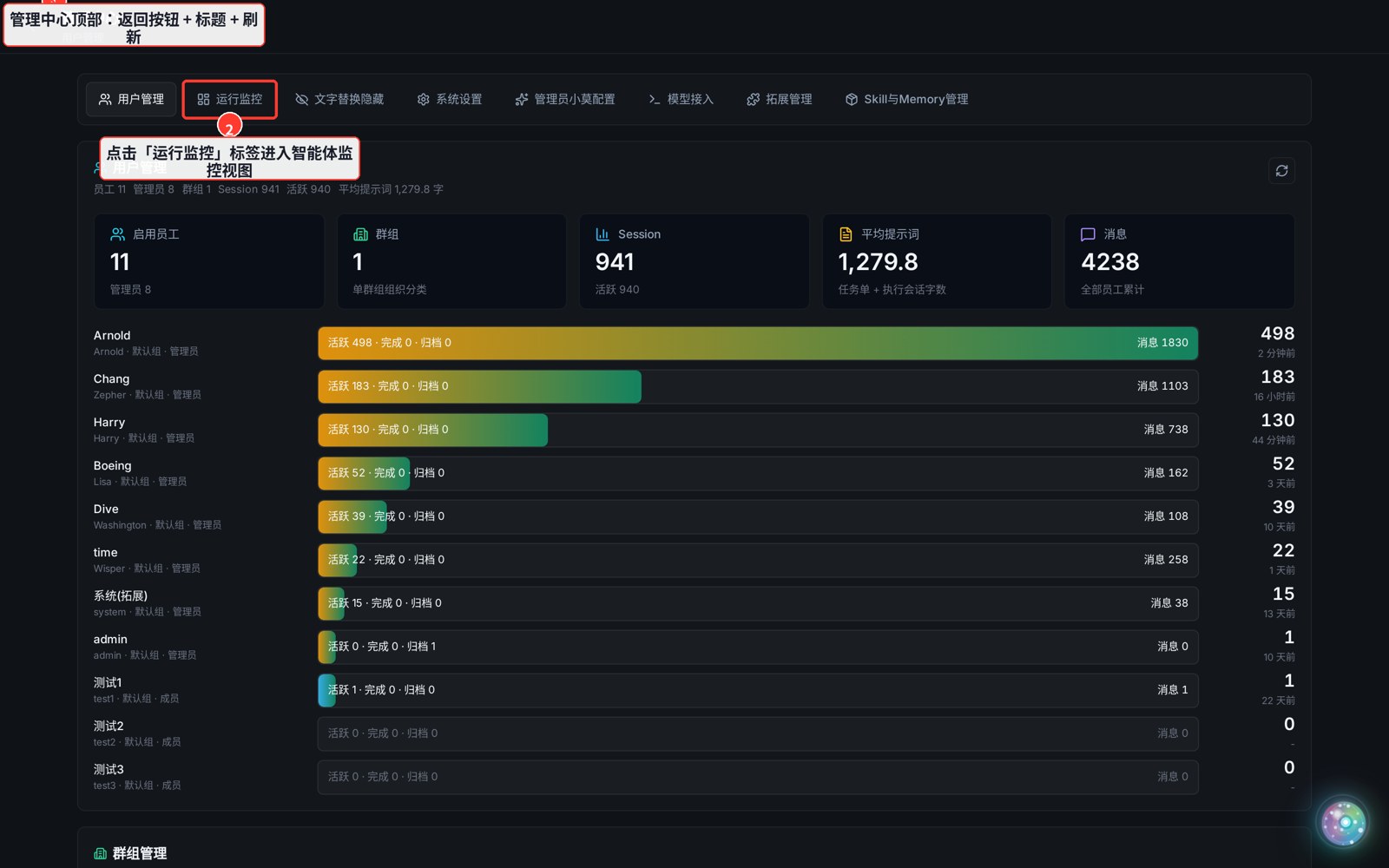
2. Switch to the "Runtime Monitoring" tab
- The admin center has a title bar at the top (with a back button on the left) and a row of feature tabs below.
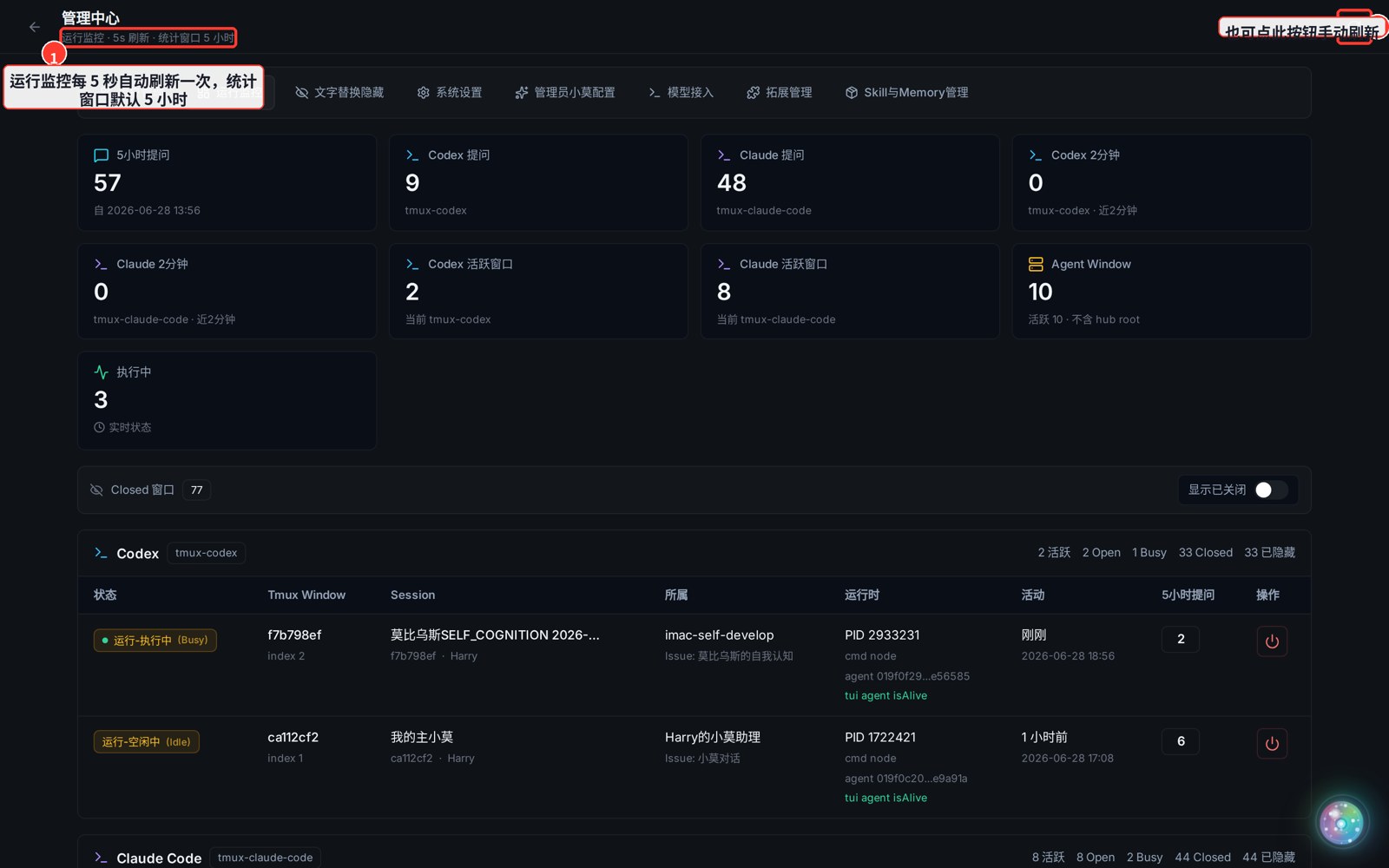
- Click Runtime Monitoring to open the agent view — it auto-refreshes every 5 seconds.
3. Read the overview stat tiles
- The top row of tiles shows the global picture: 5-hour / 2-minute question counts, active-window counts for Codex and Claude Code, and how many windows are currently Busy.
- The stats window covers the last 5 hours by default.
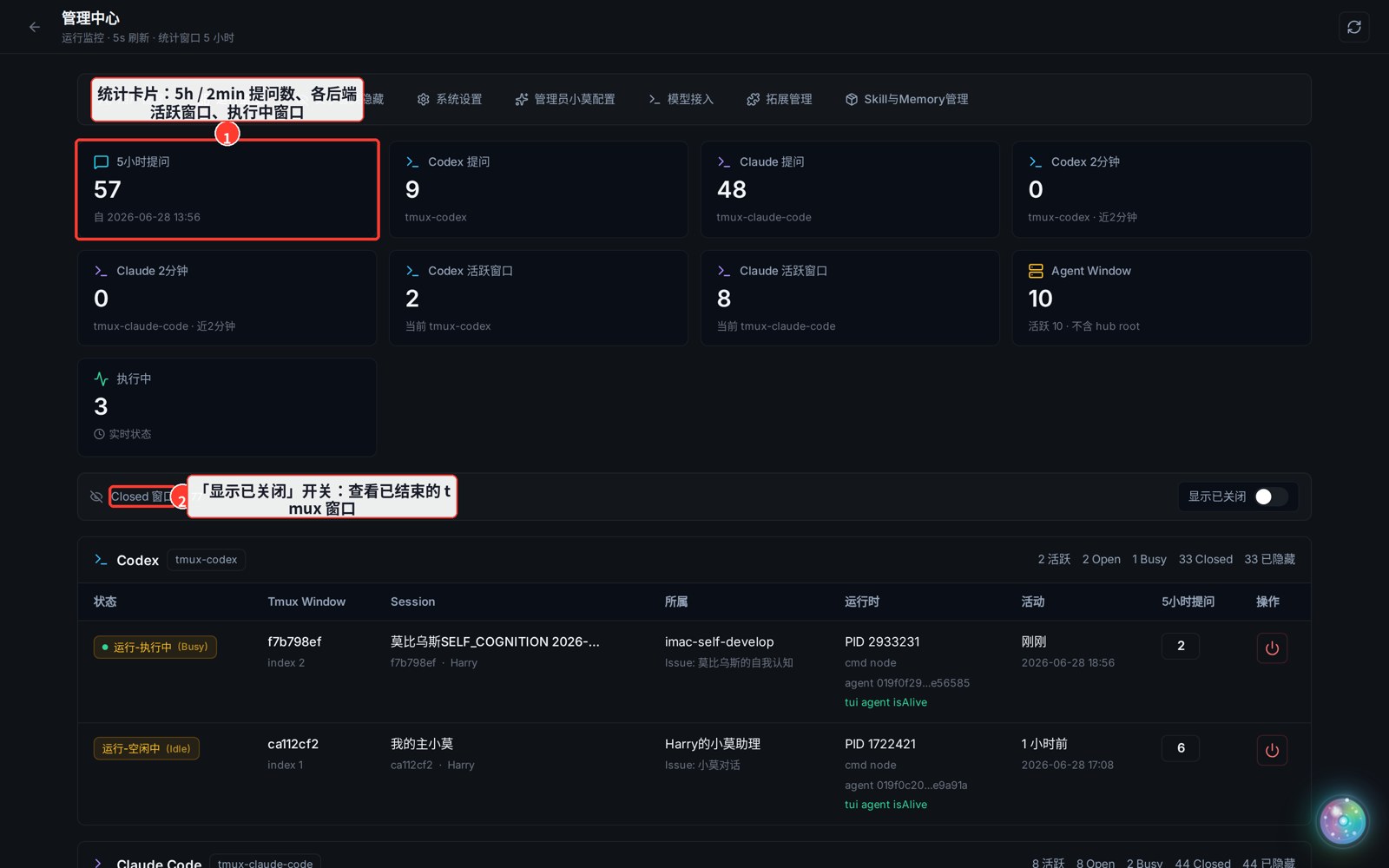
- Below the tiles is a "Show closed" toggle: turn it on to also list tmux windows that have already ended (including historical Closed records), handy for retrospectives.
4. Inspect the Codex backend table
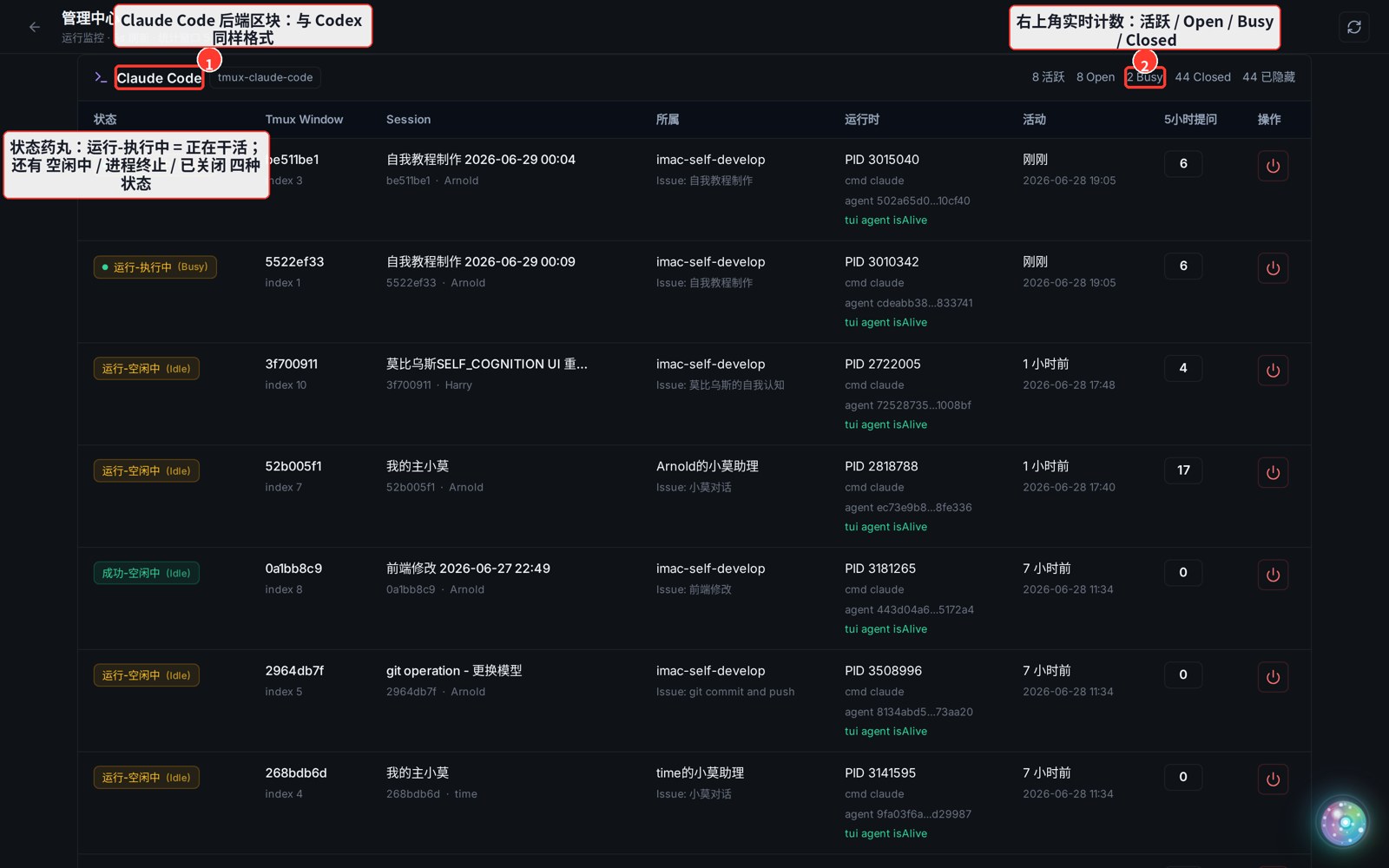
- Each backend (Codex / Claude Code) gets its own section, with a live "Active / Open / Busy / Closed" counter in the top-right.
- The table lists one tmux window per row. Key columns:
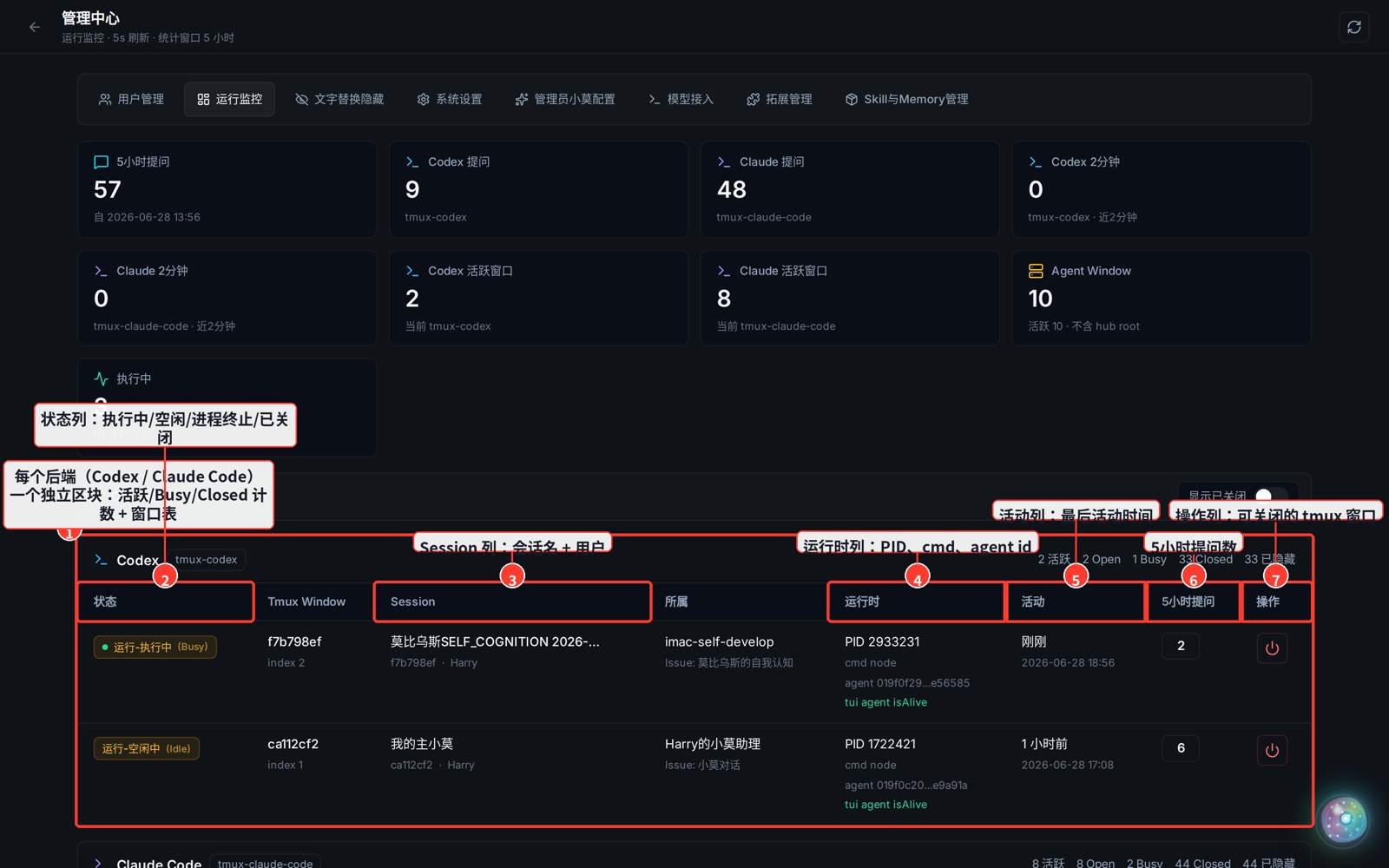
- ① Section overview: Active / Busy / Closed counts for Codex or Claude Code.
- ② Status column: a pill with one of four states —
Busy,Idle,Terminated,Closed— each in a different color so you can tell at a glance. - ③ Session column: the session name and the user who triggered it.
- ④ Runtime column: the tmux window's PID, current cmd, and agent id — use these to tell whether the process is still alive.
- ⑤ Activity column: the last-activity timestamp (relative + absolute).
- ⑥ 5-hour questions: how many prompts this window sent within the stats window.
- ⑦ Action column: closable windows show a red power button — click it to kill a stuck tmux window.
5. The Claude Code section works the same way
- Scroll down to the Claude Code section — same layout as Codex.
- Focus on the status pill:
Busymeans it's actively working,Idlemeans the process is alive but not doing anything;TerminatedorClosedmeans that agent has stopped.
6. Auto-refresh & manual refresh
- Runtime Monitoring pulls fresh state every 5 seconds automatically — no action needed.
- To refresh immediately, click the refresh button in the top-right of the title bar.
In one sentence: Admin Center → Runtime Monitoring, auto-refreshing all the time — see every agent window's status, session, PID and question count, and close any stuck window right from the action column.