How to Configure Claude Code + a Model
Claude Code models are configured under Admin Center → Model Integration → Claude Code. Each model connects to its upstream via --settings <file> (no proxy), which is ideal for plugging in OpenAI-compatible / Claude / domestic LLMs.
1. Open Model Integration → Claude Code
- Top-right avatar menu → Admin Center → the Model Integration tab → pick Claude Code at the top right. Left: imported models; right: add / edit form.
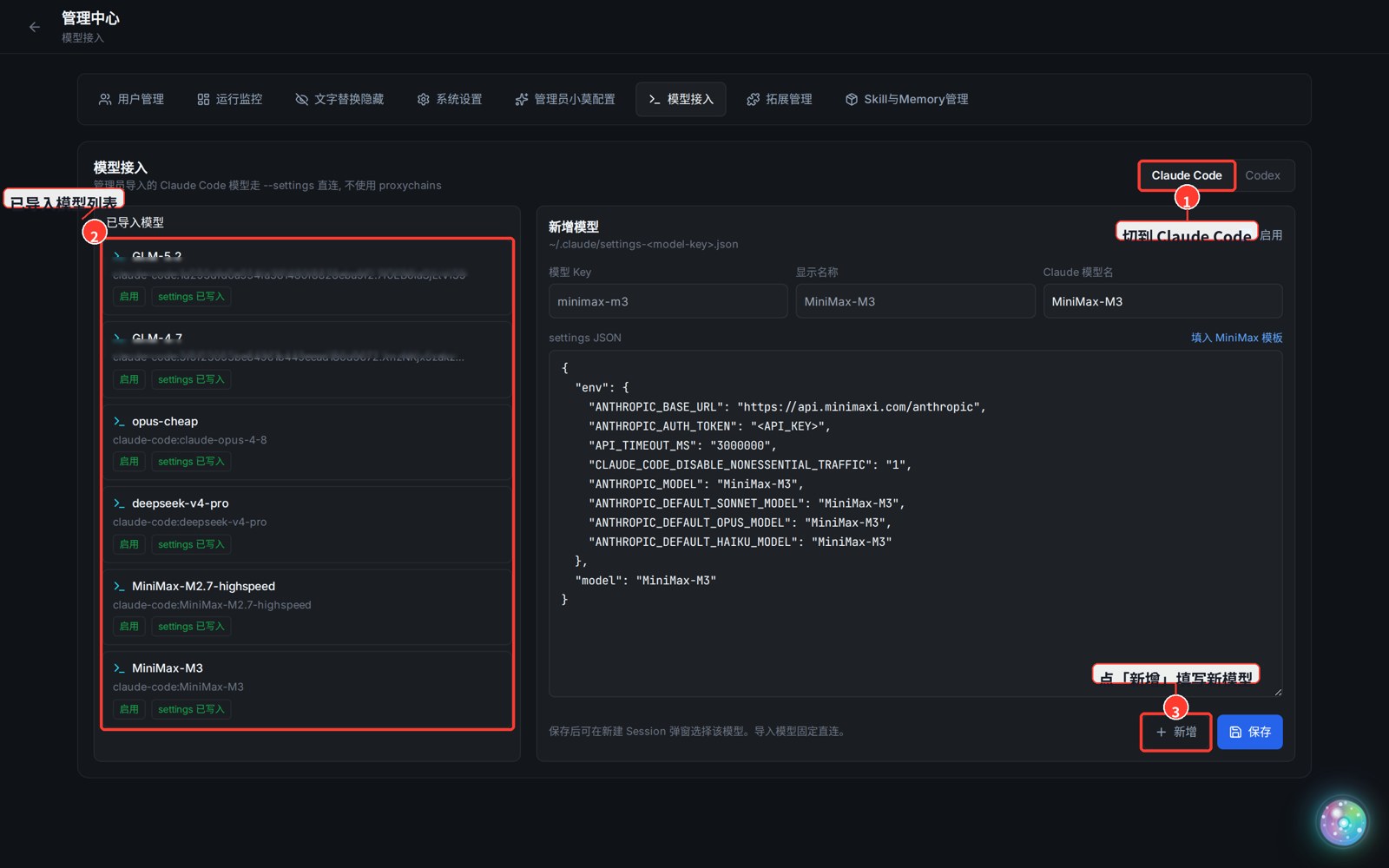
2. Add a Claude Code Model
- Click New, then fill in:
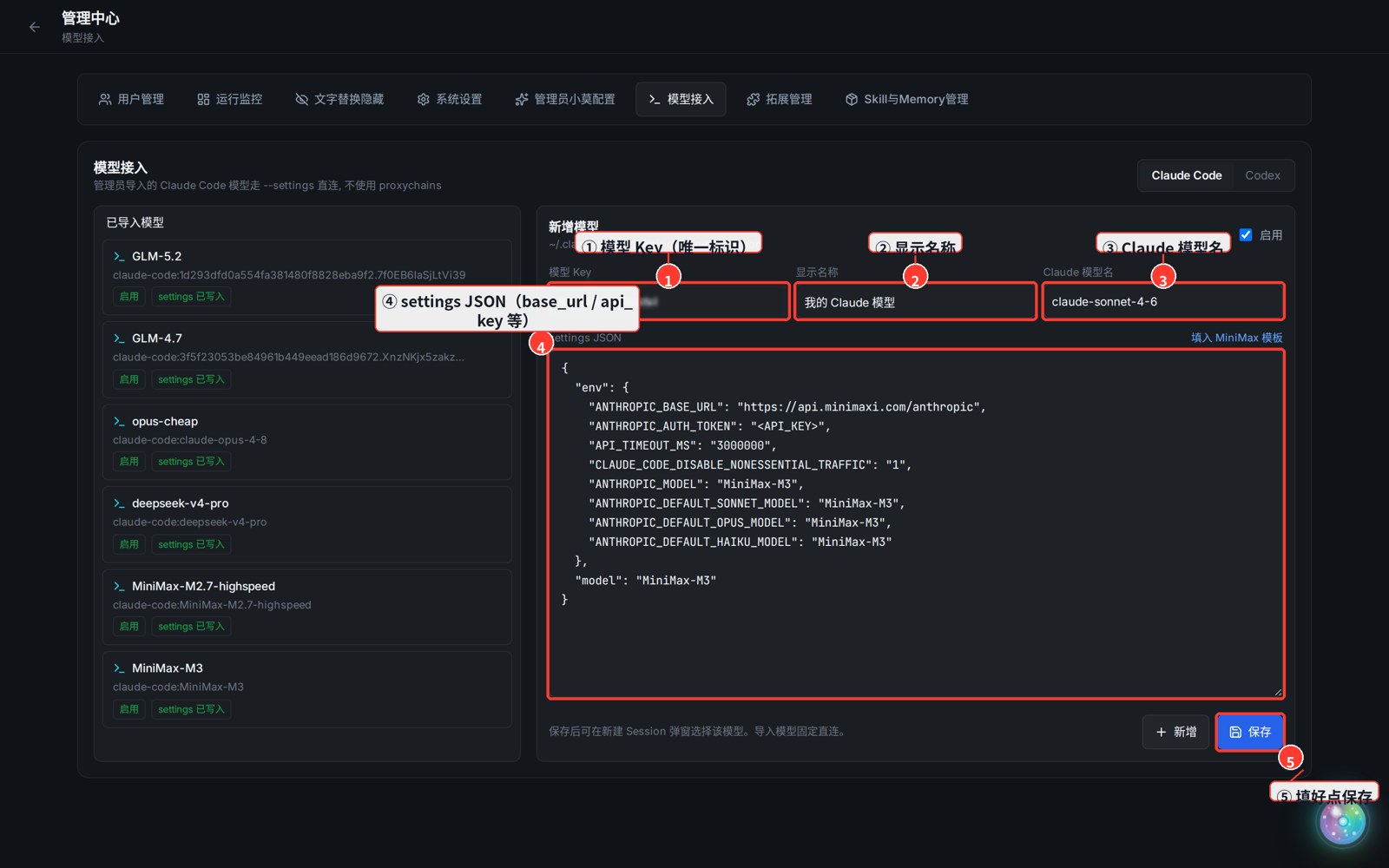
| Field | Meaning |
|---|---|
| ① Model Key | Unique id (an auto-generated long key is fine, or a custom short name) |
| ② Display name | Name shown in the picker, e.g. My Claude Model |
| ③ Claude model name | The real model id, e.g. claude-sonnet-4-6, glm-4.7 |
| ④ settings JSON | JSON written to the settings file; contains ANTHROPIC_BASE_URL / ANTHROPIC_AUTH_TOKEN, etc. |
| ⑤ Enable + Save | Tick "enabled", then "Save" |
- Example settings JSON (OpenAI-compatible endpoint):
{
  "env": {
    "ANTHROPIC_BASE_URL": "https://your-endpoint/v1",
    "ANTHROPIC_AUTH_TOKEN": "sk-your-key",
    "ANTHROPIC_MODEL": "claude-sonnet-4-6"
  }
}
3. Use It
- Saving generates the corresponding
settingsfile; the model then shows up in the picker when creating a new session. - To temporarily disable a model: open it in the list, uncheck "enabled", and save (existing sessions are unaffected).